Variables, Expressions and Comments
Templates become powerful when you mix HTML with dynamic data. Jinja2 is the template engine Feather Flow uses. This page covers the basics - outputting values, creating your own variables, using filters and leaving comments.
Key topics
Two syntax styles - block tags and line statements.
Outputting values with
{{ }}.Creating variables with
set.Accessing properties with dot notation.
Filters for transforming values.
Comments.
Two syntax styles
Jinja2 has a standard block syntax that uses curly braces. In addition, Feather
Flow enables a shorthand called line statements that starts with %%. Both
are equivalent - use whichever you find more readable.
Purpose |
Block syntax |
Line statement |
|---|---|---|
Output a value |
|
(same) |
Statement |
|
|
Comment |
|
|
The rest of this guide uses line statements (%%) because they look cleaner
in HTML templates. Remember you can always switch to the block form if you
prefer.
Outputting values
Double curly braces print a value into the HTML:
Template:
<p>Hello, {{ "world" }}!</p>
Output:
<p>Hello, world!</p>
You can output any expression - a string, a number or a variable. Jinja2 converts it to text automatically.
Setting variables
Use set to create a variable that you can reuse later.
Template:
%% set year = calendar.year(2026)
<h1>Planner {{ year }}</h1>
Output:
<h1>Planner 2026</h1>
The calendar object is provided by pyplanner (see Data Reference for
the full list). Calling calendar.year(2026) creates a Year object that
knows everything about that year - its months, days, whether it is a leap year
and more.
Tip
Always call calendar.year() once at the top of your template and store
the result in a variable. Do not call it multiple times - it does the same
work each time.
Do:
%% set year = calendar.year(2026)
<h1>{{ year }}</h1>
<p>{{ year }} has {{ year.months|length }} months</p>
Don’t:
<h1>{{ calendar.year(2026) }}</h1>
<p>{{ calendar.year(2026) }} again</p>
Dot notation
Objects have properties you access with a dot:
Template:
%% set year = calendar.year(2026)
%% set january = year.months[0]
<p>First month: {{ january.name }}</p>
<p>Month ID: {{ january.id }}</p>
<p>Days in January: {{ january.days|length }}</p>
Output:
<p>First month: January</p>
<p>Month ID: 2026-01</p>
<p>Days in January: 31</p>
Use square brackets to access items by position. Positions start at zero, so
year.months[0] is January and year.months[11] is December.
Short names
Month and WeekDay objects have dedicated short_name properties for
abbreviated display. WeekDay also has a letter property for single-character
labels. These work correctly across all languages set via --lang.
Template:
%% set year = calendar.year(2026)
%% set january = year.months[0]
<th>{{ january.short_name }}</th>
Output:
<th>Jan</th>
Tip
Prefer short_name and letter over string slicing (name[:3],
name[0]). Slicing by character count does not produce correct
abbreviations in all languages.
String representation
Many objects print a human-friendly value when you put them directly inside
{{ }}:
Expression |
Output |
|---|---|
|
|
|
|
|
|
|
|
So {{ day }} is a shortcut for {{ day.value }}. Both produce the same
text, but the shorter form is preferred.
Do:
<td>{{ day }}</td>
Don’t (unnecessary - same result, more typing):
<td>{{ day.value }}</td>
Filters
Filters transform a value. You apply them with the pipe character |.
Expression |
Output |
|---|---|
|
|
|
|
|
|
|
|
Template:
%% set year = calendar.year(2026)
<p>{{ year.months|length }} months</p>
Output:
<p>12 months</p>
You will rarely need filters beyond length in planner templates, but they
are there if you want them.
Update the Demo Planner
Open planners/demo/demo.html and add variables for the year and the month.
Our Demo Planner covers a single month, so we pick January (year.months[0]).
The cover shows both the month name and the year dynamically:
%% set year = calendar.year(2026)
%% set month = year.months[0]
<!doctype html>
<html>
<head>
  <meta charset="utf-8">
  <style>
    @page { size: 139.7mm 215.9mm; margin: 0; }
    html, body { margin: 0; padding: 0; height: 100%; }
    .page {
      position: relative;
      width: 139.7mm; height: 215.9mm;
      overflow: hidden;
      page-break-after: always;
      break-after: page;
    }
    .back {
      position: absolute; inset: 0;
      width: 100%; height: 100%;
      object-fit: cover; z-index: -1;
    }
  </style>
</head>
<body>
  <div class="page">
    <img class="back" src="{{ base }}/assets/cover.png">
    <h1 style="text-align: center; padding-top: 70mm;">
      Demo Planner - {{ month }} {{ year }}
    </h1>
  </div>
</body>
</html>
Regenerate and check:
pyplanner planners/demo
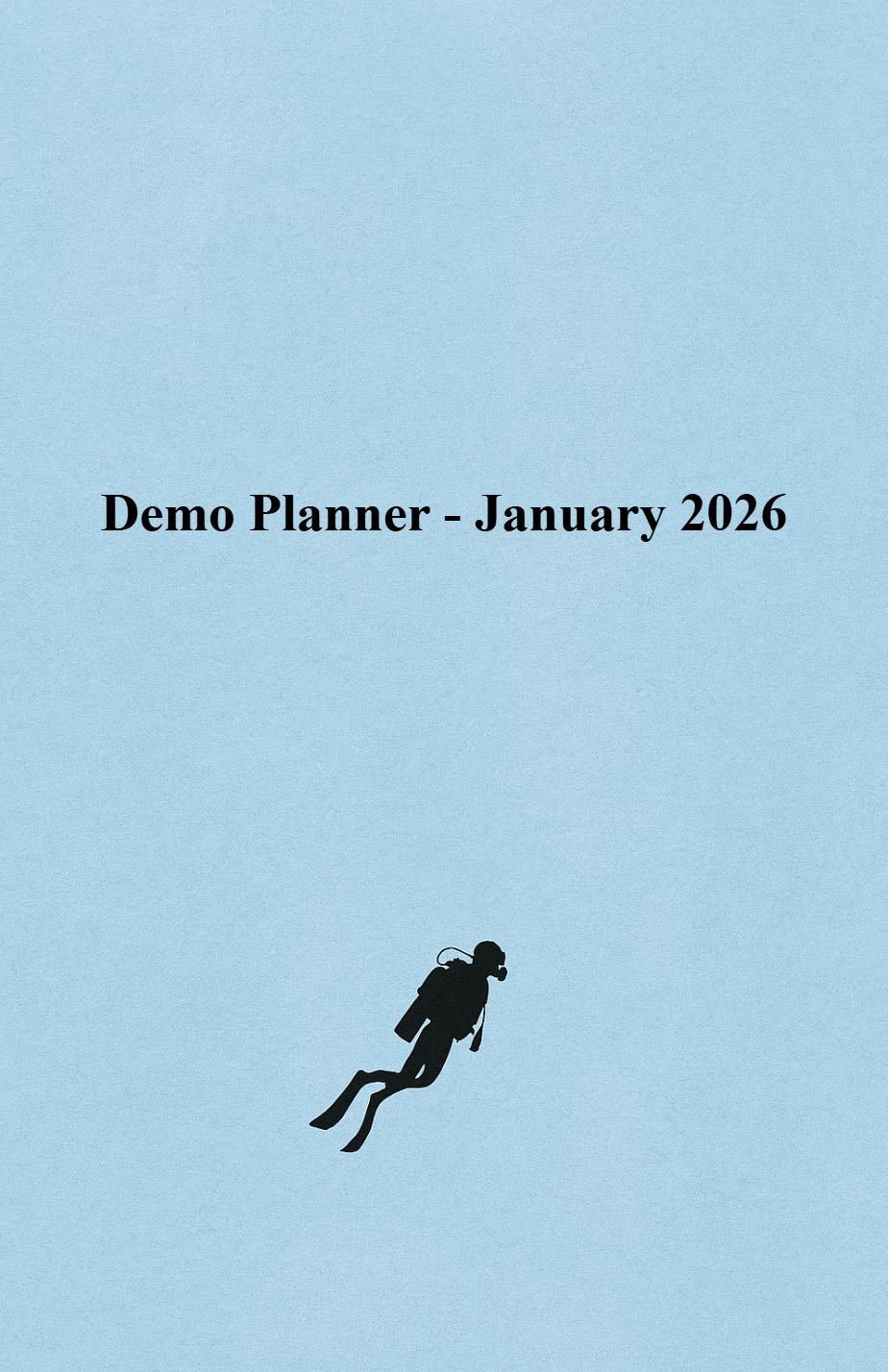
The title should now read “Demo Planner - January 2026”.
What is next
Continue to Loops and Conditionals to learn how to repeat HTML with loops and show content conditionally.
Comments
Comments are ignored by the engine and do not appear in the output.
Line comment (recommended in Feather Flow templates):
Block comment:
HTML comment (still appears in the output):
<!-- This IS visible in the generated HTML. -->Use
##or{# #}for notes to yourself. Use<!-- -->only if you want the comment to survive into the final HTML.