Loops and Conditionals
Planners are repetitive by nature - twelve month pages, up to 31 day pages per month, seven weekday headers in every table. Loops let you generate all that HTML from a single block of code. Conditionals let you change what appears based on the data - for example highlighting weekends in red.
Key topics
forloops and how to iterate over months, days, weeks.The
loophelper variable (index, first, last).if/elif/elseconditionals.The
is nonetest for empty calendar cells.
For loops
A for loop repeats a block of HTML once for every item in a list.
Template:
<ul>
  %% for month in year.months
  <li>{{ month }}</li>
  %% endfor
</ul>
Output:
<ul>
  <li>January</li>
  <li>February</li>
  <li>March</li>
  <li>April</li>
  <li>May</li>
  <li>June</li>
  <li>July</li>
  <li>August</li>
  <li>September</li>
  <li>October</li>
  <li>November</li>
  <li>December</li>
</ul>
year.months is a list of twelve Month objects. On each pass through the loop
the variable month holds the current item. The name before in is up to
you - month, m or anything else.
Nested loops
Loops can be placed inside other loops. The planner template uses this to build calendar tables - an outer loop over weeks and an inner loop over days in each week.
Template:
%% for month in year.months
<h2>{{ month }}</h2>
<table>
  %% for week in month.table
  <tr>
    %% for day in week
    <td>{{ day }}</td>
    %% endfor
  </tr>
  %% endfor
</table>
%% endfor
Output (January 2026 excerpt, first two weeks):
<h2>January</h2>
<table>
  <tr>
    <td></td>
    <td></td>
    <td></td>
    <td>1</td>
    <td>2</td>
    <td>3</td>
    <td>4</td>
  </tr>
  <tr>
    <td>5</td>
    <td>6</td>
    <td>7</td>
    <td>8</td>
    <td>9</td>
    <td>10</td>
    <td>11</td>
  </tr>
  ...
</table>
Some cells are empty because January 2026 starts on a Thursday. We will handle those empty cells with a conditional below.
The loop variable
Inside every for block Jinja2 provides a special variable called loop
with useful information about the current iteration.
Property |
Description |
|---|---|
|
Current iteration, starting at 1. |
|
Current iteration, starting at 0. |
|
|
|
|
|
Total number of items. |
Template:
<ul>
  %% for month in year.months
  <li>{{ loop.index }}. {{ month }}</li>
  %% endfor
</ul>
Output:
<ul>
  <li>1. January</li>
  <li>2. February</li>
  <li>3. March</li>
  ...
  <li>12. December</li>
</ul>
Using loop.index0 for tuple access
When a planner has twelve month pages, each with its own background image, the
images can be stored in a tuple and accessed by position using loop.index0:
Template:
%% set month_backgrounds = (
  "assets/jan.png",
  "assets/feb.png",
  "assets/mar.png",
)

%% for month in year.months
<div class="page">
  <img class="back" src="{{ base }}/{{ month_backgrounds[loop.index0] }}">
  <h2>{{ month }}</h2>
</div>
%% endfor
On the first iteration loop.index0 is 0, so it picks
assets/jan.png. On the second it is 1, and so on.
Tip
Use loop.index0 (zero-based) when indexing into a list or tuple. Use
loop.index (one-based) when displaying a number to the reader.
If / elif / else
Conditionals let you show or hide HTML based on a condition.
Template:
%% for day in calendar.weekdays
%% if day.is_off_day
<th style="color: red;">{{ day.short_name }}</th>
%% else
<th>{{ day.short_name }}</th>
%% endif
%% endfor
Output:
<th>Mon</th>
<th>Tue</th>
<th>Wed</th>
<th>Thu</th>
<th>Fri</th>
<th style="color: red;">Sat</th>
<th style="color: red;">Sun</th>
Saturday and Sunday have is_off_day set to true, so they get the red
style.
Inline conditionals
For short checks you can write the condition on one line:
<th{{ ' style="color: red;"' if day.is_off_day else '' }}>
  {{ day.short_name }}
</th>
This produces the same result as the block form above but is more compact.
The is none test
month.table is a grid of weeks and days. Some cells are empty - for example
January 2026 starts on Thursday, so Monday through Wednesday of the first week
have no day. These cells contain None.
Use is none (or is not none) to check:
Template:
%% for week in month.table
<tr>
  %% for day in week
  %% if day is not none
  <td>{{ day }}</td>
  %% else
  <td></td>
  %% endif
  %% endfor
</tr>
%% endfor
Output (January 2026, first week):
<tr>
  <td></td>
  <td></td>
  <td></td>
  <td>1</td>
  <td>2</td>
  <td>3</td>
  <td>4</td>
</tr>
Warning
Always use is none or is not none instead of == None or
!= None. The is form is the correct Jinja2 way.
Do:
%% if day is not none
Don’t:
%% if day != None
Do and don’t summary
Do |
Don’t |
|---|---|
|
|
|
|
Close every |
Forget |
Close every |
Forget |
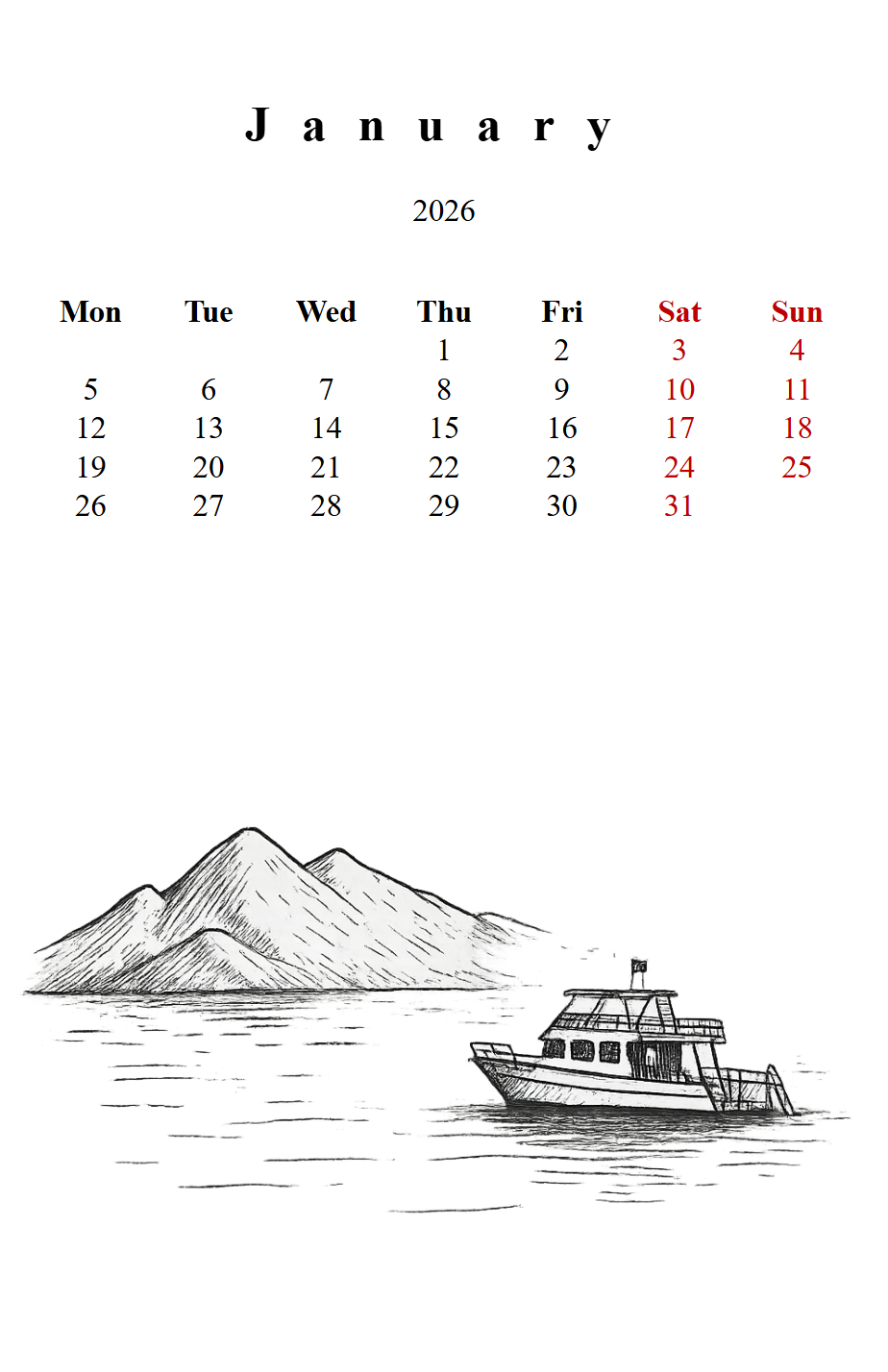
Update the Demo Planner
Add a second page that shows a calendar table for the month. Open
planners/demo/demo.html and add the following after the cover page div
(before </body>):
<div class="page" id="{{ month.id }}">
  <img class="back" src="{{ base }}/assets/calendar.png">
  <h2 style="text-align: center; margin-top: 15mm;
             font-size: 22pt; letter-spacing: 5mm;">
    {{ month }}
  </h2>
  <p style="text-align: center; font-size: 14pt;">
    {{ year }}
  </p>
  <table style="width: calc(100% - 10mm);
                margin: 10mm 5mm 0 5mm;
                border-collapse: collapse;
                font-size: 14pt; text-align: center;
                table-layout: fixed;">
    <thead>
      <tr>
        %% for wd in calendar.weekdays
        %% if wd.is_off_day
        <th style="color: #C00000;">{{ wd.short_name }}</th>
        %% else
        <th>{{ wd.short_name }}</th>
        %% endif
        %% endfor
      </tr>
    </thead>
    <tbody>
      %% for week in month.table
      <tr>
        %% for day in week
        %% if day is not none
        <td>{{ day }}</td>
        %% else
        <td></td>
        %% endif
        %% endfor
      </tr>
      %% endfor
    </tbody>
  </table>
</div>
This uses three nested concepts you learned on this page:
A loop over
calendar.weekdaysfor the header row.A conditional to color weekends red.
Nested loops over
month.table(weeks, then days) with anis not nonecheck for empty cells.
Regenerate:
pyplanner planners/demo
You should now see two pages - the cover and a month calendar.
What is next
The calendar table has quite a lot of repeated HTML. Continue to Macros to extract it into a reusable macro.